How to scrape Glassdoor data: Step-by-step guide
Step-by-step guide on how to scrape Glassdoor data, including job postings, employee reviews, and salary information.
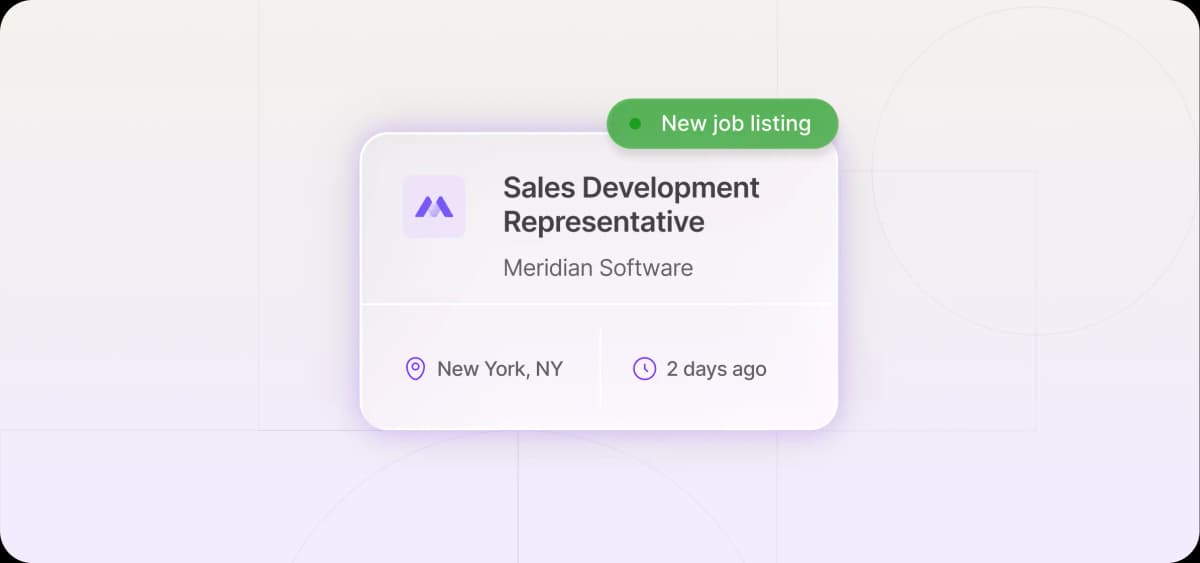
Glassdoor contains hiring data on hundreds of thousands of companies, updated in real time as roles open and close.
For sales teams, that's pipeline intelligence. You can't just point a generic scraper at it and expect clean results, though.
Glassdoor uses Cloudflare and DataDome to detect and block automated traffic and gates its content behind a give-to-get policy, in which you submit a review of a company you've worked at in exchange for information access.
What you can extract from Glassdoor
Glassdoor displays three categories of company data useful to sales teams: job postings, company reviews, and salary information. Each category serves a different purpose in a prospecting workflow.
Job postings and job data
Job postings are the most actionable data type on Glassdoor for sales teams. They reveal which companies are actively hiring, what functions are expanding, and where budget is being allocated.
Each job posting on Glassdoor includes the following information:
Job title
Company name
Location
Job description snippet
Company reviews and employee reviews
Company reviews add a qualitative layer of data that job postings miss. They surface patterns in employee sentiment that can indicate organizational instability, leadership turnover, or cultural decline.
Glassdoor reviews typically consist of the following components:
Overall rating
Review title
Pros and cons
Reviewer role
Review date
Aggregating reviews by company and tracking rating changes over time can surface sentiment trends worth investigating. A drop in culture ratings or a pattern of "poor management" mentions can signal internal problems, which creates an opening for outreach positioned around a relevant solution.
Salary information for benchmarking
Glassdoor salary data is self-reported and incomplete across many companies, so it is of limited value. Where it is available, records include role, location, and a salary range or point estimate.
Once structured, this data can be useful for comparing what companies that match your ideal customer profile (ICP) pay for specific roles across regions, or for flagging accounts whose salary ranges suggest they have budget for premium tooling. Just treat it with a pinch of salt.
The easiest ways to scrape Glassdoor without coding
Non-developers have two paths to scrape Glassdoor data: manual searches or no-code scraping tools that handle the data extraction layer for you. The right choice depends on the size of your target account list and how frequently you need fresh data.
Manual Glassdoor research workflows
Before you can access Glassdoor's full data, you need to complete a basic registration. Following Glassdoor's give-to-get policy, submit a review of a company you've worked at, and you receive 12 months of unrestricted access.
Once you're in, search by job title, location, or company name; filter by date posted; and record what you find in a spreadsheet.
This method has one obvious limitation: you can only monitor so many companies at once. Manual workflows make sense for highly targeted account-based marketing lists where you're tracking 20–30 named accounts. For anything broader, they don't hold up.
Using no-code web scraping tools
Tools like Octoparse, WebHarvy, and Apify let you point at a webpage, select the fields you want to extract, and run automated scraping on a schedule. They use a visual point-and-click interface that identifies page elements and maps them to output columns.
Follow these steps to configure a no-code scraper:
Define the fields you want to capture.
Test the selector logic.
Verify that pagination (the logic that moves your scraper from one page of results to the next) works correctly.
Before the export lands anywhere downstream, it’s also important to clean it.
Octoparse, for example, has a built-in “clean data” function that handles deduplication, whitespace trimming, and date reformatting directly in the scraping workflow. Apify manages it through a dedicated deduplication add-on.
Regardless of which tool you use, Glassdoor formatting regularly produces inconsistent line breaks and special characters that downstream tools struggle to read.
Once cleaning is complete, export directly to a CSV file or Excel. Most tools support scheduled runs: daily, weekly, or at whatever cadence your workflow requires.
How to scrape Glassdoor job listings
These steps apply whether you're running a no-code tool or working with a developer who's building a custom scraper. The workflow is the same regardless of your technical setup.
How to scrape Glassdoor job listings
These steps apply whether you're running a no-code tool or working with a developer who's building a custom scraper. The workflow is the same regardless of your technical setup.
Choose the job search query
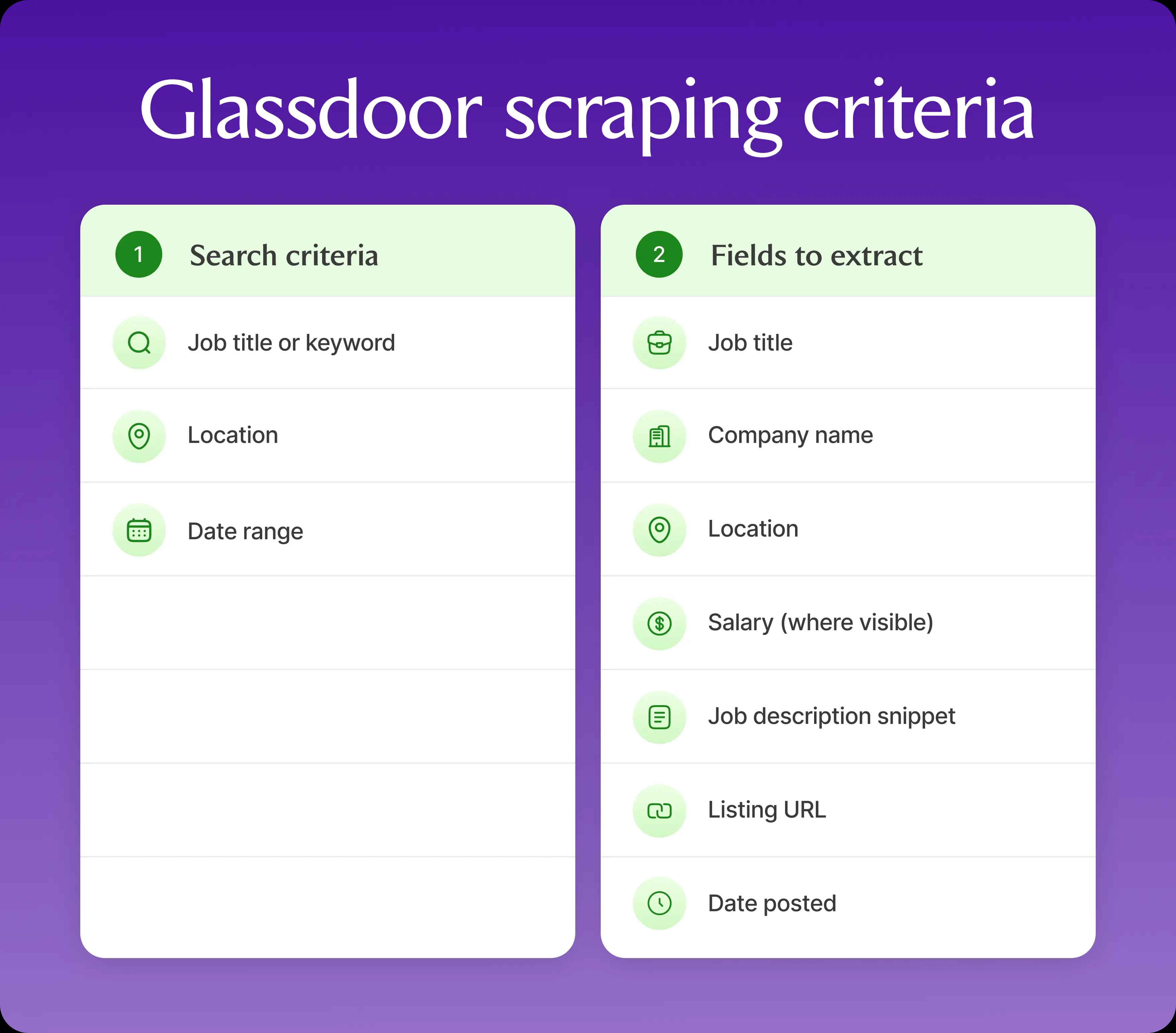
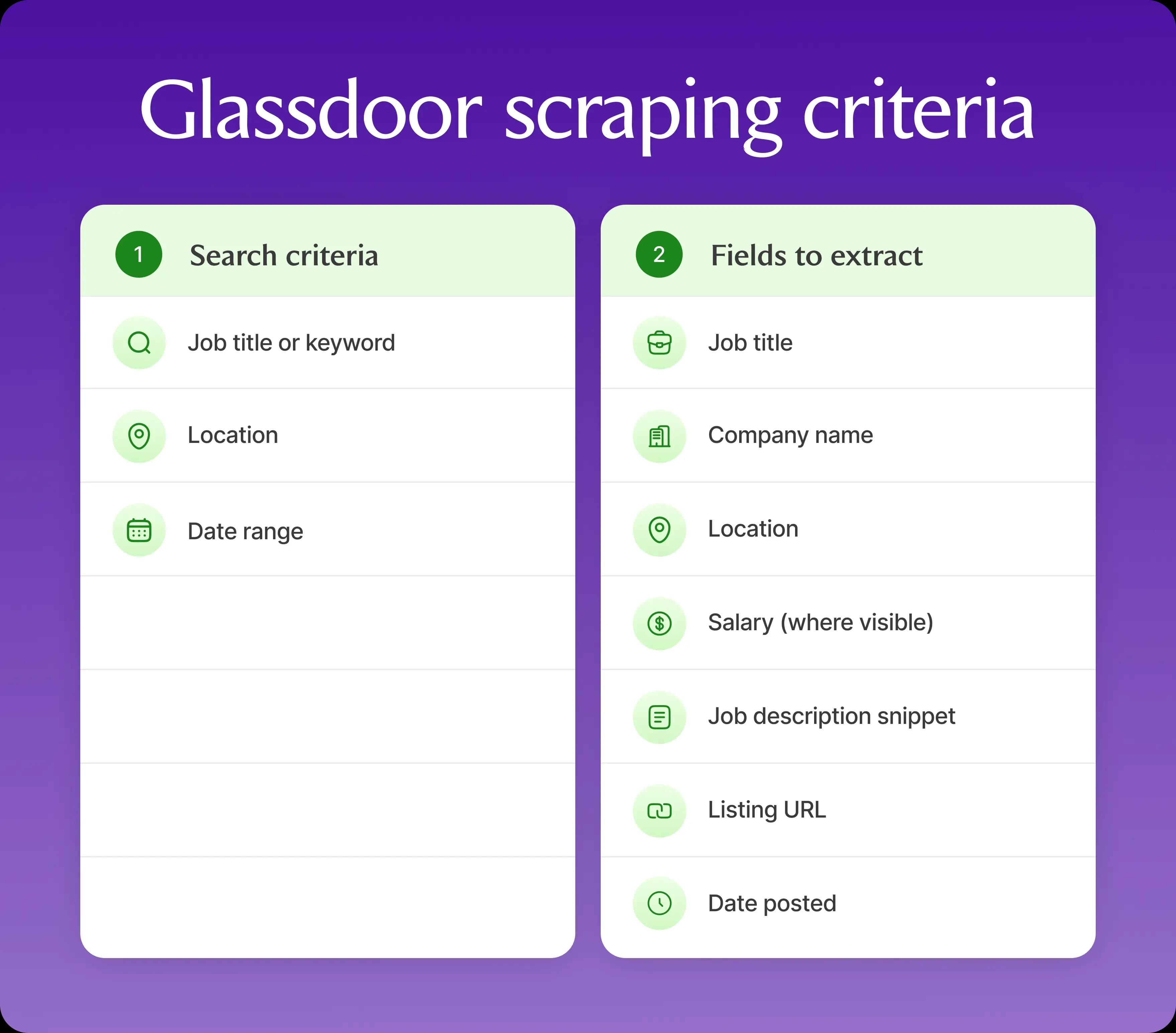
Glassdoor's search takes three inputs: a job title or keyword, a date filter, and a location. How you combine them determines the quality of what comes back.
Start with the job title: Search for the specific role your ICP hires when they're investing in your product's use case. Run each title as a separate query so you can track volume per role over time.
Set the date filter: Choose "Last 7 days" or "Last 30 days" on every run. Without it, Glassdoor resurfaces older listings.
Add location: Include this if geography is a real filter for your ICP. If it isn't, search broadly and segment by region in the dataset later.
Once your queries are defined, save them. Run the same searches every week to spot any relevant hiring activity early.
Extract job listing fields
Each Glassdoor listing contains structured data you can pull into your prospecting workflow. Capturing the right fields upfront saves time on enrichment and segmentation later.
Extract the following fields from each listing:
Job title
Company name
Location
Salary (where visible)
Job description snippet
Listing URL
Date posted
Don't skip the description snippet. It can tell you whether a company is backfilling an existing role or building a function from scratch, and this distinction changes how you frame outreach.
Handle pagination
Glassdoor spreads job listings across multiple pages, showing 30 results per page. To collect all of them, your scraper needs to move through each page automatically — either by updating the page number in the URL (e.g. moving from ?page=1 to ?page=2) or by clicking the "Next" button on the results page the way a real user would.
Test your pagination setup before running at scale. A misconfigured scraper may only capture page one, and you won't notice until after you’ve exported the data. Most no-code tools handle pagination automatically once configured, but you still need to verify it on a test run before committing to a full extraction.
Export the dataset
Once you've scraped and cleaned your data, export it in the format that matches your downstream workflow.
Most tools support two standard options:
CSV: For spreadsheet-based workflows or manual review in Excel or Google Sheets
JSON file: If you're piping data directly into a CRM or outbound platform
Most CRMs accept CSV imports natively, so it's the safer default if you're not sure. JSON gives you more flexibility if you're pushing data through an API or automating the import step, but it requires your CRM or middleware to interpret it correctly before anything lands in the right fields.
How to structure and clean scraped Glassdoor data
Glassdoor exports often come with inconsistent data formats, like dates showing as "Jan 5, 2025" in one entry and "01/05/2025" in another, duplicate listings, and encoding errors (characters that fail to convert correctly and display as symbols). All of these are preventable, and cleaning them takes less time than debugging a CRM full of incorrect data after it’s been imported.
Organize the dataset
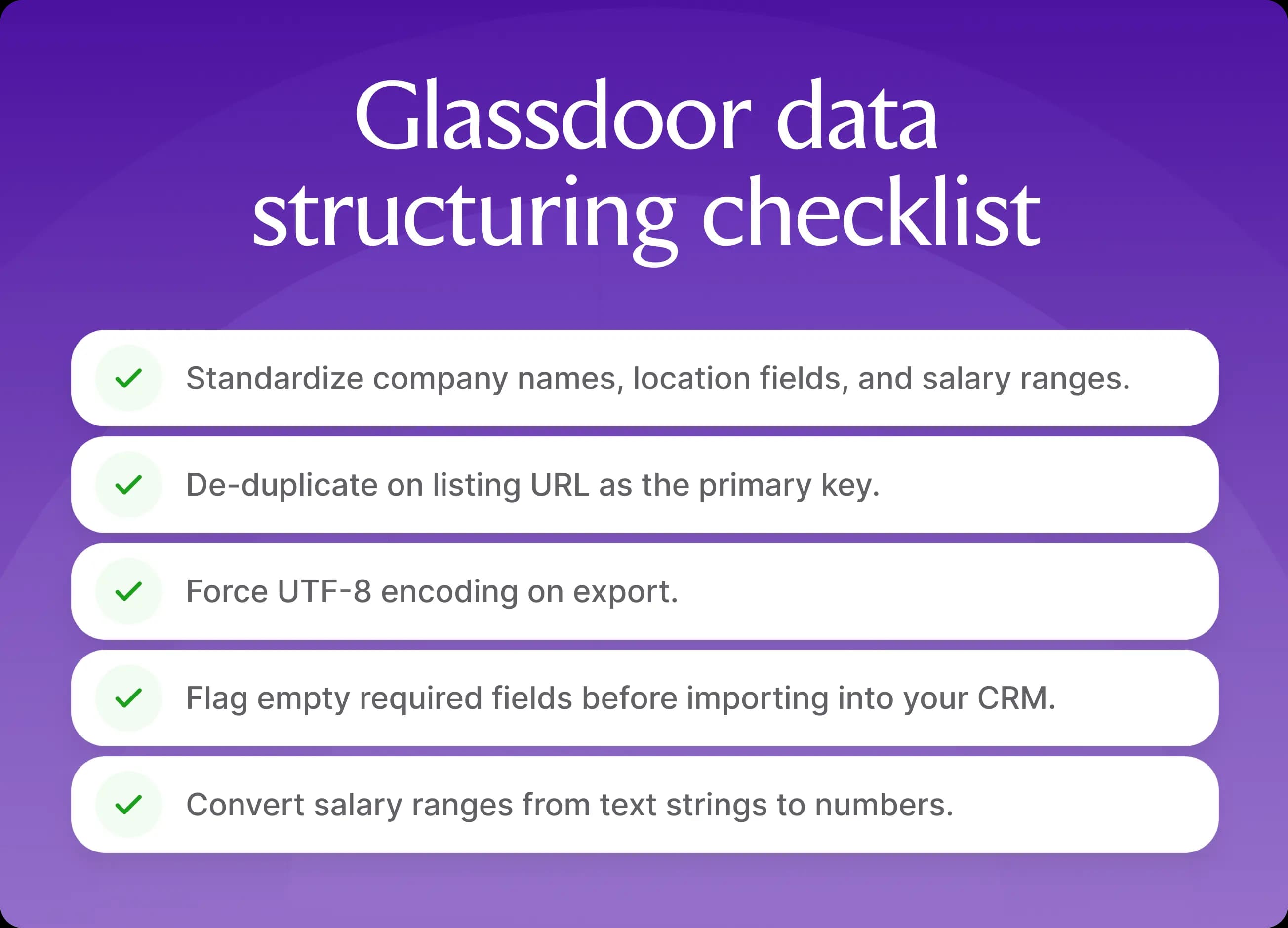
Glassdoor exports rarely come out clean enough to import directly into a CRM or analysis tool. A few minutes of standardization upfront prevents issues once you start using the data.
Three fields consistently need cleanup:
Company names
Location fields
Salary ranges
How you standardize depends on your setup. Many scraping tools handle this step automatically. In Excel or Google Sheets, you can use the various built-in functions like find-and-replace for company name variants.
Remove data from duplicate posts
The same posting can appear across multiple search queries or after a page refresh. Left unchecked, duplicate rows inflate your posting-volume counts and can push a company into a higher scoring tier than its actual hiring activity warrants.
Where and how you de-duplicate depends on where you're exporting the data:
Scraping platforms: Enable de-duplication before scraping. Octoparse, for example, will automatically drop any row where the URL of a post matches an existing entry.
Excel: Once your export is open, go to the Data tab, click Remove Duplicates, and select the listing URL column as the key field. Excel will compare every row against that column and remove any that share the same URL
CRM import: Most CRMs like HubSpot and Salesforce let you define a unique identifier when importing records. This identifier is a single field the system uses to recognize whether an incoming entry already exists in your database. Good practice is to set the listing URL as that field. If a record with the same URL already exists, the CRM will flag it as a duplicate and either skip it or merge it with the existing entry rather than create a second one.
Validate encoding and formatting
Glassdoor pages regularly produce special characters that cause encoding errors in downstream tools. This is why it’s important to force UTF-8 encoding on export. UTF-8 is a universal standard that tells your tools how to read and display characters correctly, preventing symbols from rendering as gibberish. Most no-code tools let you set the encoding in the export settings before the file is generated.
Once you've exported the Glassdoor data, check for three common issues:
Garbled characters: Scan text fields for symbols like "’" or "é" that indicate encoding issues.
Empty required fields: Flag any rows missing job titles, company names, or listing URLs.
Salary values stored as text: If a salary field contains "$80,000–$100,000" as a text string rather than a number, it won't be usable for analysis or filtering.
In Excel, a fast way to catch the last issue is to apply a number format to the salary column. Cells that don't convert are your problem rows.
How to avoid Glassdoor scraping blocks
Glassdoor runs Cloudflare and DataDome anti-bot protection. Running a scraper at any meaningful volume without countermeasures will result in rate limits, CAPTCHAs, or IP bans. Each layer of detection requires a different countermeasure.
Rotate proxies and IP addresses
A single IP that sends repeated requests in a short window will be blocked. Proxy rotation distributes your requests across multiple addresses, reducing the signal you send to Glassdoor's detection systems.
There are two proxy types:
Residential proxies are IP addresses assigned to real home internet connections. These are harder to fingerprint as automated traffic, with better match rates against Glassdoor's detection.
Datacenter proxies are IP addresses hosted on commercial servers rather than real devices. These are cheaper but more easily identified and blocked.
Providers like Brightdata and Oxylabs offer proxy pools built for this use case. Apify also includes proxy rotation natively. With Octoparse and WebHarvy, you'll need to enter your proxy provider's address manually in the tool's proxy settings before running a scrape.
Use realistic headers and user-agent settings
When your scraper sends a request to Glassdoor, it includes a header (a piece of metadata attached to every web request) that identifies the client making it. The client is whatever is sending the request: in normal browsing, that's your browser; in scraping, it's your scraping tool or script. This identifier is called the user-agent string.
A default scraping library sends something like ‘python-requests/2.28.0,’ which immediately tells Glassdoor's detection systems the request is coming from an automated script rather than a real browser.
To avoid issues, you should rotate through a list of user-agent strings, each representing a real browser and OS combination: Chrome on Windows, Safari on Mac, and Firefox on Linux. A user-agent string that matches a real, current browser version might look something like ‘Mozilla/5.0 (Windows NT 10.0; Win64; x64) AppleWebKit/537.36 (KHTML, like Gecko) Chrome/121.0.0.0 Safari/537.36.’
Keep two things in mind. Browser versions update frequently, so an outdated Chrome version in your user-agent looks suspicious even at low volume. In addition, switching identity on every single request will look suspicious. It’s important to rotate across sessions, not page loads, to mimic how real users actually behave.
In Octoparse, user-agent rotation is built in. Once activated in the crawler settings, it handles updates automatically. In WebHarvy, you need to enable the custom user-agent option to specify a browser string manually.
Manage CAPTCHAs and anti-bot systems
Glassdoor deploys CAPTCHA challenges when it suspects automated traffic, and DataDome can trigger blocks before a CAPTCHA even appears. Handling these obstacles requires either built-in tool support or a third-party solving service.
No-code scraping tools handle CAPTCHA and anti-bot blocks differently:
Apify has built-in anti-bot bypass handling for Glassdoor through its Actor ecosystem, a library of add-ons for extending platform functionality.
Octoparse and WebHarvy integrate with third-party solving services like 2Captcha, which handle the solving step automatically
If you're hitting persistent blocks, the issue is usually proxy quality or request timing. Address these before assuming you need a more sophisticated CAPTCHA solution.
How to turn Glassdoor data into outbound advantage
Scraped data sitting in a spreadsheet doesn't generate pipeline. To move from "we have this data" to "we're booking meetings from it," you need to connect hiring signals to a workflow that triggers enrichment and outreach automatically.
Convert hiring into account-level intent
A single job posting isn't much of a signal. But when a company posts multiple open roles across sales, marketing, and revenue operations within a 30-day window, this is a pattern. Headcount is growing and new tooling decisions are likely.
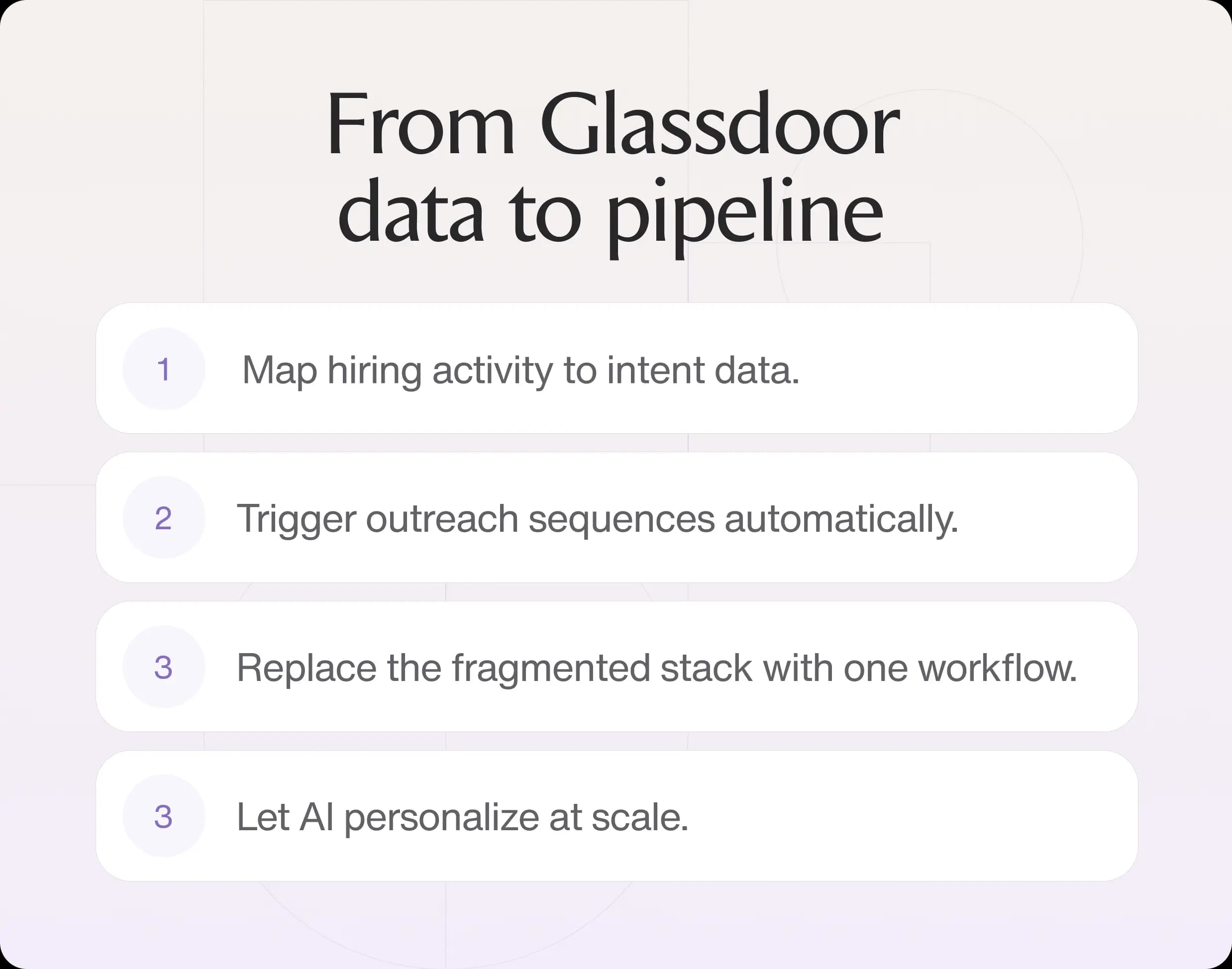
That's why you map job postings to account-level patterns rather than treating each listing individually. Group by company, count postings by department, and flag accounts that cross your intent threshold.
Trigger sequences automatically
Once an account crosses your intent threshold, it should enter your outreach workflow without manual intervention. Automating this step eliminates the delay between signal detection and first touch.
Feed your scored list into your outbound platform with a defined trigger condition. For example, any company that posted 3 or more go-to-market roles in the last 30 days might be enrolled in a hiring-signal sequence automatically.
Artisan is an all-in-one platform that handles this process automatically. It tracks multiple signals, including on Glassdoor, and automatically triggers deeply personalized outreach to decision-makers that show intent.
Remove the stack sprawl
A typical outbound workflow runs across five separate tools: a scraper, an enrichment tool, a CRM, an email platform, and a social media automation layer. Each handoff is a potential point of failure, a delay, and another contract to pay for.
Use a consolidated outbound platform to replace this chain. With a system like Artisan, for example, you define your ICP and signal conditions once, and the platform handles detection, enrichment, and outreach in a single workflow. It’s powered by an autonomous AI business development rep (BDR) called Ava, and everything can be automated.

Let AI handle the heavy lifting
AI sales development rep (SDR) tools remove the need for manual supervision of your outbound workflow.
These AI prospecting and outreach systems handle two functions that static automation cannot:
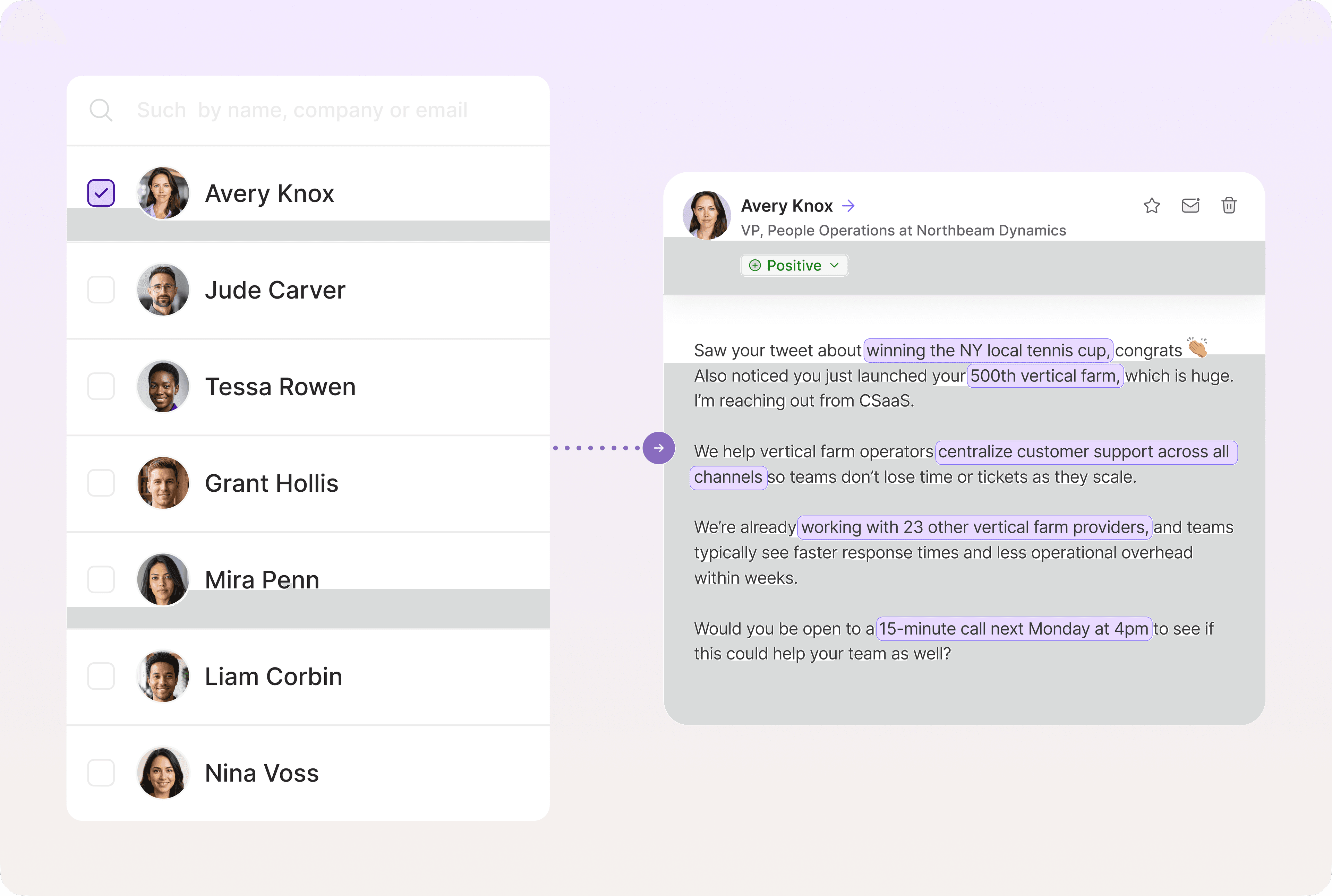
Personalization: AI reads the signal context and writes outreach that reflects it.
Optimization: AI adjusts sending times, message variations, and follow-up cadences based on reply patterns across campaigns, without the need for anyone to manually review performance and update sequences.
Ava, Artisan's AI BDR, turns hiring signals into personalized outreach automatically. She monitors a large range of signals, writes messages based on the context she finds, and continuously optimizes sequences based on what's converting.
A simple hiring-signal scoring framework
Not all job postings are equal. Grouping signals by strength helps you focus on the highest-probability opportunities.
There are three broad categories of hiring signals, low-intent, medium-intent, and expansion indicators, that determine how much effort you should expend on an account.
Low-intent hiring signals
These signals indicate possible interest in a solution like yours:
One isolated job posting
Backfill or replacement roles
No pattern across departments
Infrequent or inconsistent hiring activity
Corporate accounts that fit this profile should usually be added to a nurture sequence. Check back in two weeks and, if no additional postings have appeared, deprioritize them.
Medium-intent signals
These signals indicate likely interest in a solution like yours:
Multiple open roles within the same team or function
Hiring for mid-to-senior positions
Early leadership or management hires
Gradual increase in job postings over time
Lead profiles that show this level of activity should be routed to your SDR queue for a cold call or direct, personalized email.
Strong expansion signals
These signals suggest strong interest and the possibility of active buying intent:
Multiple roles across different departments (e.g., sales, marketing, ops)
Hiring bursts within a short timeframe
Senior leadership and team build-out happening simultaneously
Clear signs of scaling or entering new markets
For these accounts, route directly to an account executive (AE). Pull the full job descriptions before outreach, identify which functions are growing fastest, and lead with that context in your first message.
Combining hiring signals with other intent data
In practice, hiring activity works best when paired with other signals. Layering multiple data points creates a more reliable prioritization model than any single signal alone.
Layer in the following data points to sharpen your lead prioritization:
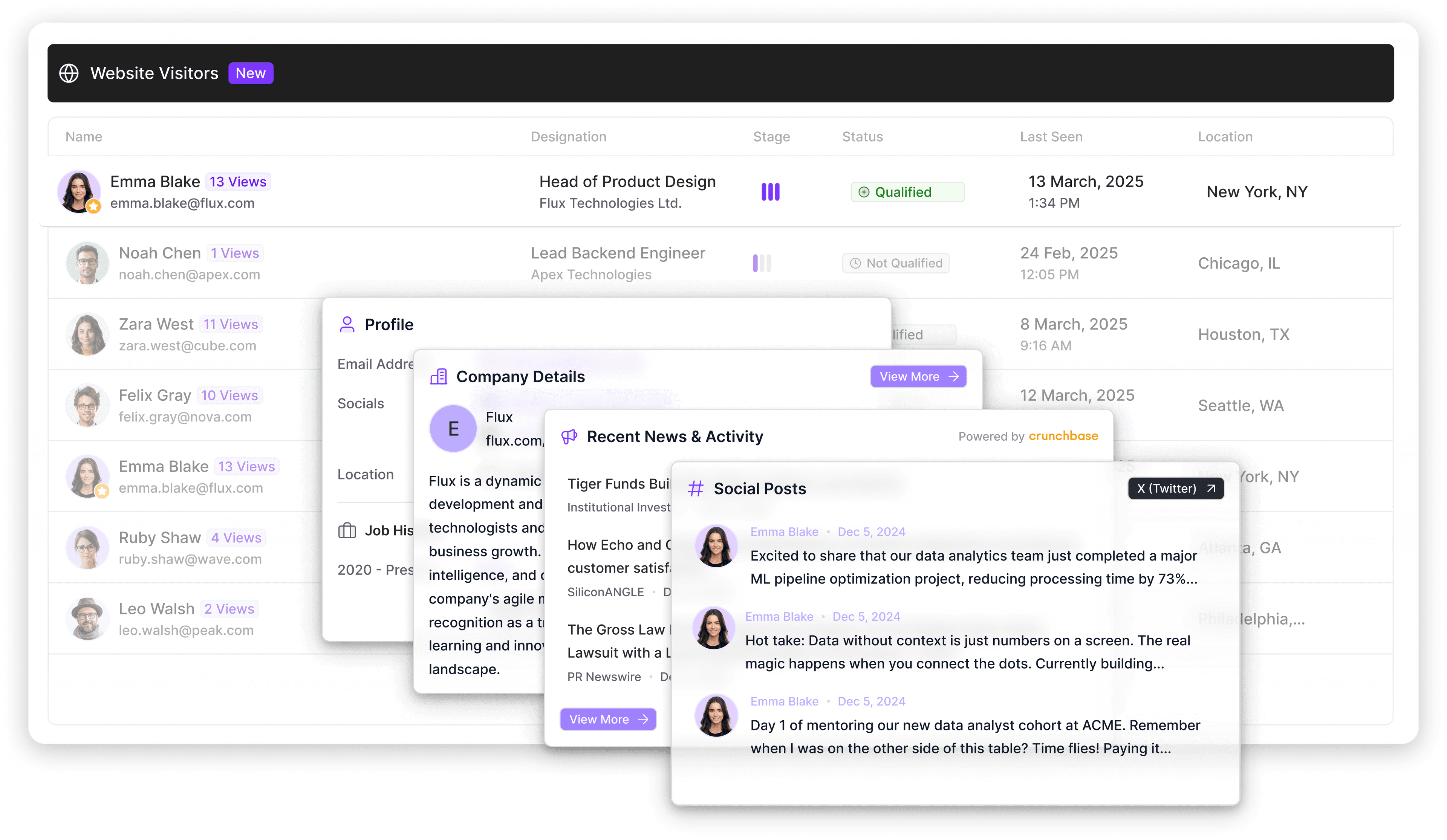
Firmographic and technographic data: Confirm ICP fit before routing and check what tools they're already running. A company that matches your ICP and uses a complementary or competing tool in its stack is a stronger priority than hiring signals alone would suggest.
Website visits: An account in any tier that has employees visiting your pricing or product pages should move up immediately.
Funding rounds: A recent raise combined with hiring activity indicates that a company has sufficient budget and is increasing headcount.
Job description content: Mentions of specific tools, competitors, or tech stack requirements tell you what a company is already using and what they're looking to replace.
Automate hiring-signal prospecting with Artisan
Artisan is an all-in-one outbound platform that replaces fragmented prospecting stacks with a single, automated workflow. It handles everything from signal detection to outreach delivery.
Replace fragmented prospecting workflows
Outbound motions typically require three to five separate tools. Artisan replaces a scattered stack with a single workflow that runs from signal detection to outreach sent. It’s powered by AI BDR Ava, an autonomous sales rep who can handle all of the early and middle stages of the outreach process.
Discover leads automatically
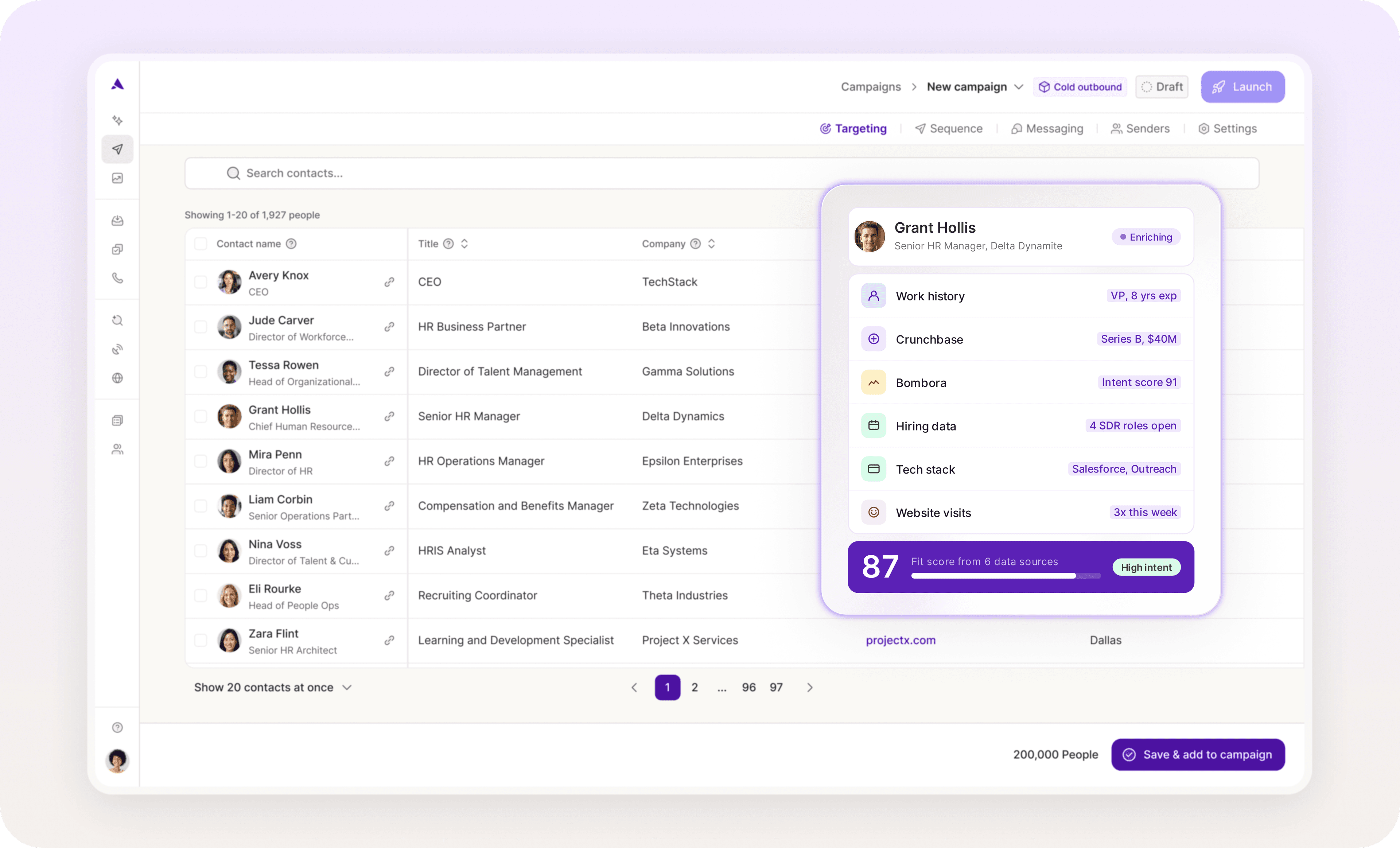
Ava monitors hiring activity alongside other growth signals, including funding events, job changes, and user behaviors. Drawing from a database of over 300 million verified B2B contacts, she researches each matched lead across their company website, blog, social media, and professional network to surface the context needed to personalize outreach.
Trigger outreach campaigns automatically
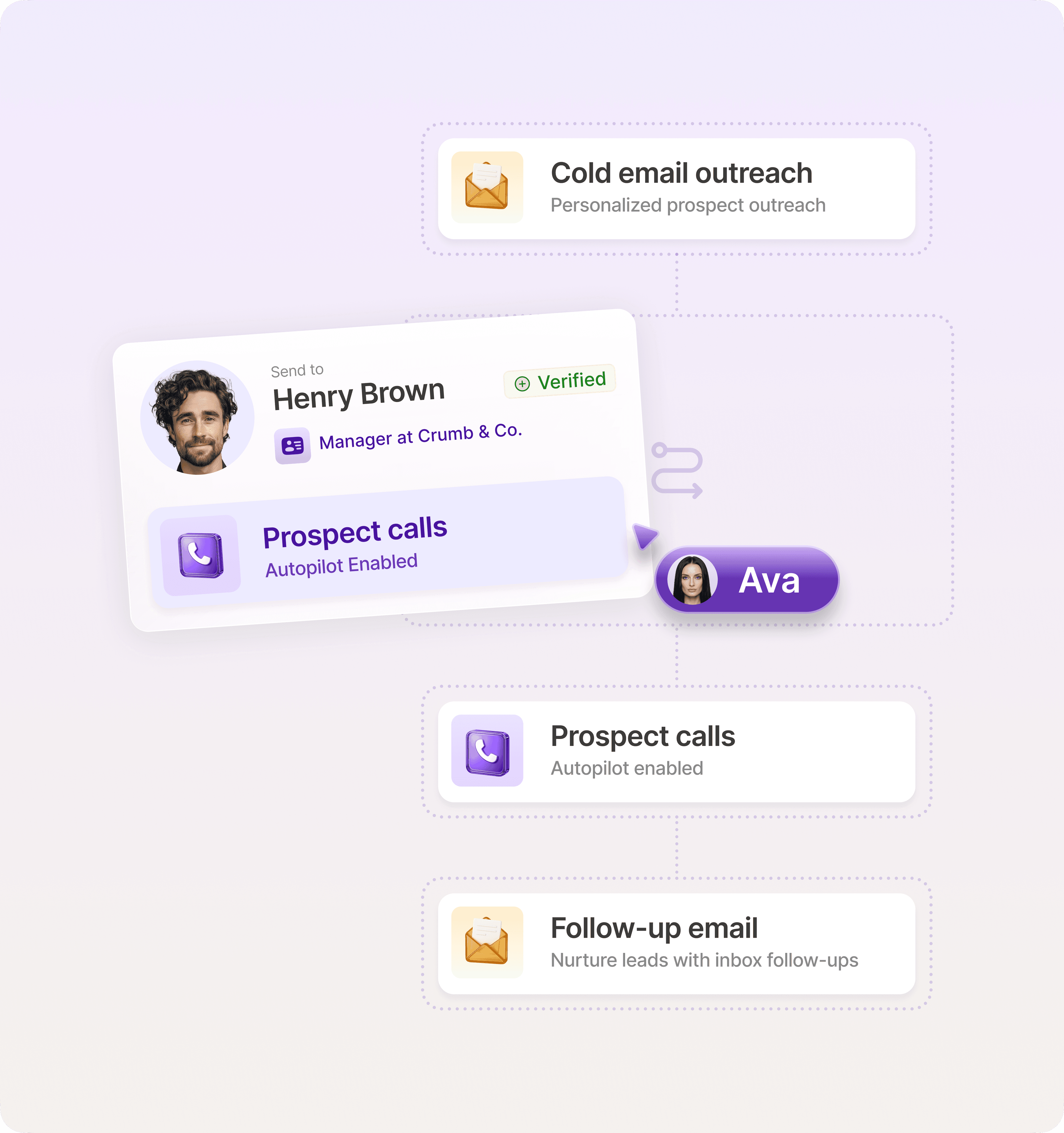
When a target account shows the hiring activity you've defined as a trigger, Artisan automatically enrolls decision-makers in a personalized outbound sequence across email and social media. Reps are notified when replies come in.
Stop collecting data and start generating pipeline
Scraping Glassdoor is relatively straightforward once you know how to handle the anti-bot measures and keep your data clean. The harder part is compressing the distance between signal capture and outreach sent.
A fragmented stack of scrapers, enrichment tools, CRMs, and email platforms makes sustained execution difficult. Each handoff introduces delay and potential failure.
Artisan takes care of the entire workflow. It monitors hiring signals continuously, enriches matched contacts automatically, and triggers personalized outreach without manual intervention.

Automate your outbound with an AI BDR
Meet Ava—your AI BDR who handles prospecting, outreach, and follow-ups, so your team can focus on closing.

Adelina Karpenkova
SME @ Artisan
Adelina Karpenkova is a writer helping businesses tap into AI's potential and clear up misconceptions. She works with B2B teams on latest industry knowledge.